> For the complete documentation index, see [llms.txt](https://help.distro.so/llms.txt). Markdown versions of documentation pages are available by appending `.md` to page URLs; this page is available as [Markdown](https://help.distro.so/integrations/email-verification.md).
# Email verification
Use ZeroBounce to check a Form Router's submitted email before routing. Connect the provider once in workspace settings, then enable validation on each router that needs it.
### Connect ZeroBounce
{% stepper %}
{% step %}
#### Open the integration
Go to **Settings → Integrations → Email verification** and choose **Connect** on ZeroBounce.
{% endstep %}
{% step %}
#### Choose the processing region
Enter your **API key** and select the **Processing region**. The initial region is **European Union**; **United States** is also available.
{% endstep %}
{% step %}
#### Verify the connection
Choose **Connect ZeroBounce**. A valid key can still produce a warning if the provider account has no validation credits.
When updating an existing connection, leave **Replacement API key** blank to keep the saved key and choose **Verify and save**.
{% endstep %}
{% endstepper %}
### Add validation to a Form Router
{% stepper %}
{% step %}
#### Add the validation card
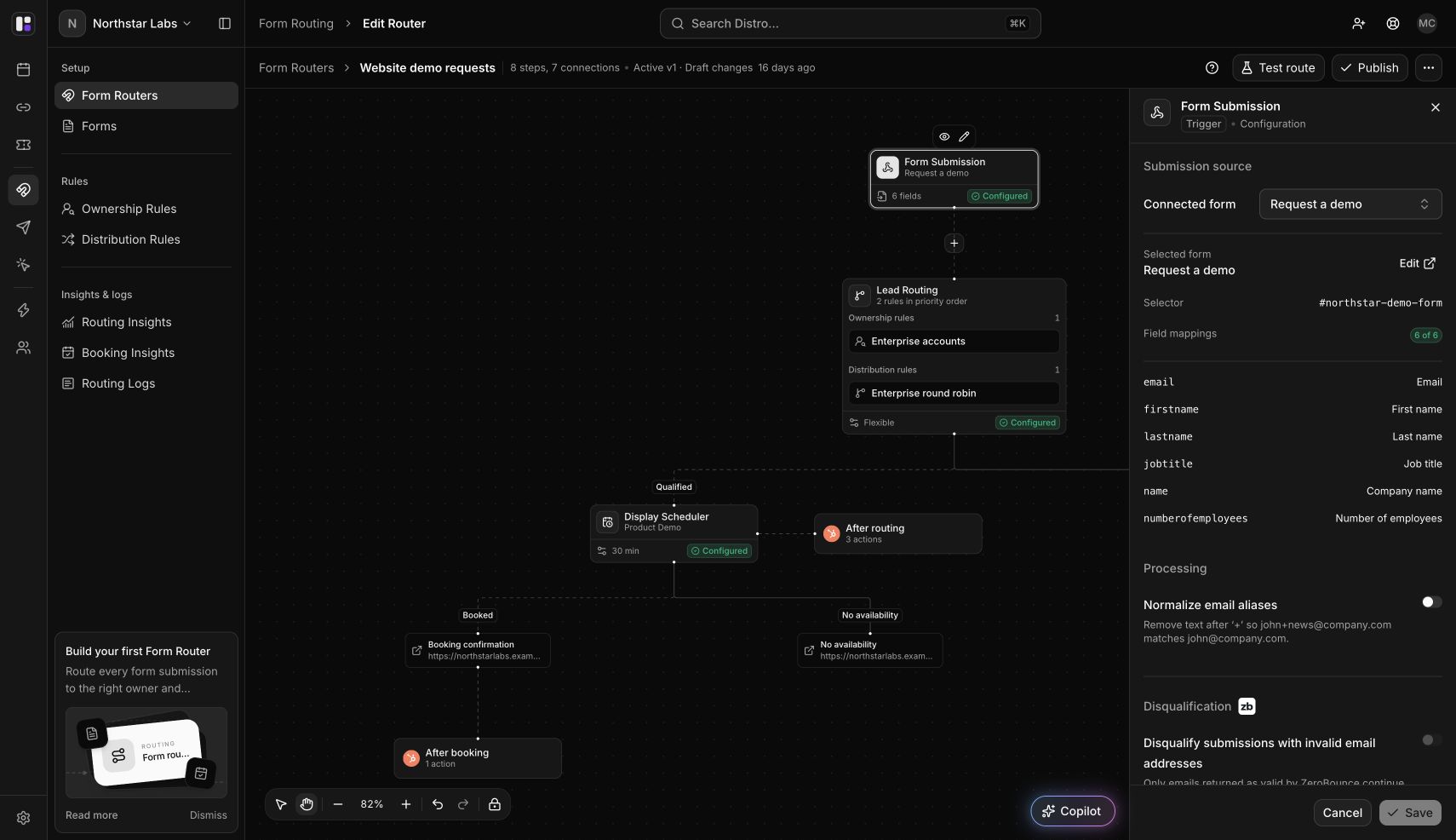
Open your router and use the **+** on the connector between **Form Submission** and **Lead Routing**. Choose **Email validation**. The ZeroBounce card appears and its settings open.
If the card is already present, click it to edit. You can also find the setting in **Form Submission**.
{% endstep %}
{% step %}
#### Enable and save
Turn on **Disqualify submissions with invalid email addresses** and choose **Save**. The switch is unavailable until ZeroBounce is connected. Canceling an unsaved insertion removes the new card.
{% endstep %}
{% step %}
#### Test and publish
Use **Test route** to check the saved configuration, then choose **Publish**. The simulation uses synthetic inputs; it does not call ZeroBounce. Verify the live integration separately with controlled test submissions.
{% endstep %}
{% endstepper %}
The disabled switch links to Settings → Integrations when a ZeroBounce connection is required.
### Understand the outcome
| Validation result | Routing behavior |
| ------------------------------------------------------------------------------ | --------------------------------------------------------------------------------------------------- |
| Email is returned as valid | Continue to routing rules. |
| Email is missing, or a successful validation returns a result other than valid | Disqualify the submission. Email-validation rejections skip the router's after-routing CRM actions. |
| Provider error or unavailable connection | Continue routing; this check does not reject the submission when validation is unavailable. |
Validation does not guarantee a booking. A valid email must still pass your routing rules and find an eligible host and time.
**Normalize email aliases** is a separate setting: it removes text after `+` so addresses such as `alex+demo@example.com` match `alex@example.com`. It does not verify deliverability.
### Reconnect or disable validation
Disconnecting ZeroBounce preserves router settings and rule conditions. Reconnect it in **Settings → Integrations** when a warning appears. Review actual routing results rather than assuming an unavailable provider rejected the prospect.
To disable validation for a router, turn the setting off, save, and publish. Saving it off removes the validation card from the draft canvas. See [Router versions](https://help.distro.so/routing/router-versions) for how changes reach new submissions.
---
# Agent Instructions
This documentation is published with GitBook. GitBook is the documentation platform designed so that both humans and AI agents can read, navigate, and reason over technical content effectively. Learn more at gitbook.com.
## Querying This Documentation
If you need additional information that is not directly available in this page, you can query the documentation by asking a question.
Perform an HTTP GET request on the following URL with the `ask` and `goal` query parameters:
```
GET https://help.distro.so/integrations/email-verification.md?ask=&goal=
```
`ask` is the immediate question: it should be specific, self-contained, and written in natural language.
`goal` is what the user is ultimately trying to achieve, the reason they need the answer. Sharing it helps GitBook give you a better, more relevant answer. A goal is most helpful when it describes the outcome the user wants rather than restating the question. For example, with `ask=how do I create an API token`, a goal like `automate deployments from our CI pipeline` lets GitBook tailor the answer to that use case.
The response will contain a direct answer to the question and relevant excerpts and sources from the documentation.
Use this mechanism when the answer is not explicitly present in the current page, you need clarification or additional context, or you want to retrieve related documentation sections.