> For the complete documentation index, see [llms.txt](https://help.distro.so/llms.txt). Markdown versions of documentation pages are available by appending `.md` to page URLs; this page is available as [Markdown](https://help.distro.so/settings/workspace-settings/asset-library.md).
# Asset library
Keep logos and images in one place for your workspace's booking themes and profile cards. Workspace admins manage the library in **Settings → Asset library**.
## Add an image
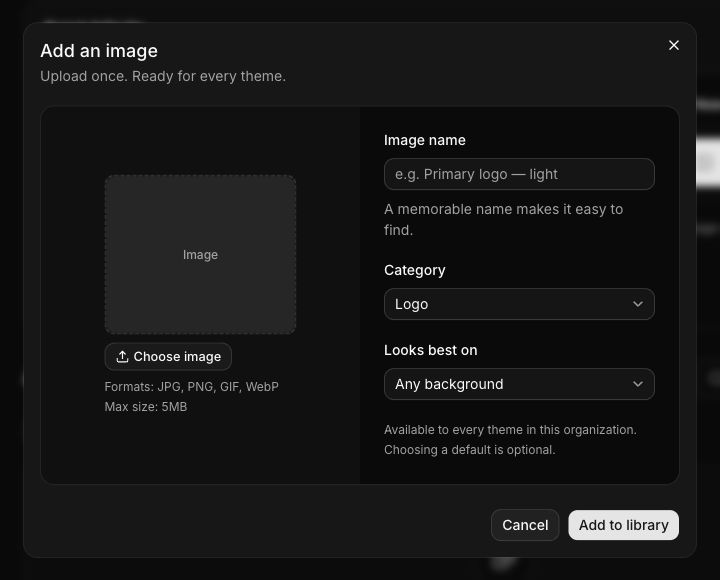
1. Click **Upload image** and choose a PNG, JPG, WebP, or GIF up to 5 MB.
2. Enter an **Image name** you will recognize later.
3. Choose **Logo**, **Header image**, or **Other image** under **Category**.
4. Set **Looks best on** to light, dark, or any background.
5. Click **Add to library**.
Give each image a clear name, category, and background choice so it is easy to reuse.
Search by name or use the category filters to find an image. **Edit details** changes its name, category, or background suitability. Upload a new image when you need to replace the file itself.
Images are available within this workspace. Adding one to the library does not apply it to every page.
## Set brand defaults
Under **Brand defaults**, choose a **Light logo**, **Dark logo**, and optional **Header image**, then click **Save defaults**. Logo defaults use images in the Logo category.
These defaults are shared by themes that use the corresponding organization default. Themes with their own selected images keep them. Without a default logo, pages fall back to the workspace logo from [General](/settings/workspace-settings/general.md).
Open **Where these defaults are used** before saving. Saving updates live pages using those defaults immediately; there is no separate publication step for asset defaults.
## Remove an image
An image's **Used in** details show its references, including theme drafts, published themes, profile cards, and brand defaults. Replace those references before using **Delete image**.
Deleting is unavailable while the image is in use. A default logo must also remain in the Logo category until you choose a replacement default.
See [Booking themes](/settings/workspace-settings/branding.md) to use images on a scheduler, or [My booking page](/booking-links/my-booking-page.md) to use them on meeting cards.
---
# Agent Instructions
This documentation is published with GitBook. GitBook is the documentation platform designed so that both humans and AI agents can read, navigate, and reason over technical content effectively. Learn more at gitbook.com.
## Querying This Documentation
If you need additional information that is not directly available in this page, you can query the documentation by asking a question.
Perform an HTTP GET request on the following URL with the `ask` and `goal` query parameters:
```
GET https://help.distro.so/settings/workspace-settings/asset-library.md?ask=&goal=
```
`ask` is the immediate question: it should be specific, self-contained, and written in natural language.
`goal` is what the user is ultimately trying to achieve, the reason they need the answer. Sharing it helps GitBook give you a better, more relevant answer. A goal is most helpful when it describes the outcome the user wants rather than restating the question. For example, with `ask=how do I create an API token`, a goal like `automate deployments from our CI pipeline` lets GitBook tailor the answer to that use case.
The response will contain a direct answer to the question and relevant excerpts and sources from the documentation.
Use this mechanism when the answer is not explicitly present in the current page, you need clarification or additional context, or you want to retrieve related documentation sections.